Hawkin Connect for Google Sheets
Pull your Hawkin test data straight into Google Sheets — live tables that refresh on demand, force-time and centre-of-pressure dashboards, and bulk athlete management. No CSV exports, no copy-paste.
Pending Marketplace review
What it does
Built for strength and conditioning coaches, sports performance analysts, and researchers working with Hawkin force plate systems.
Three query modes
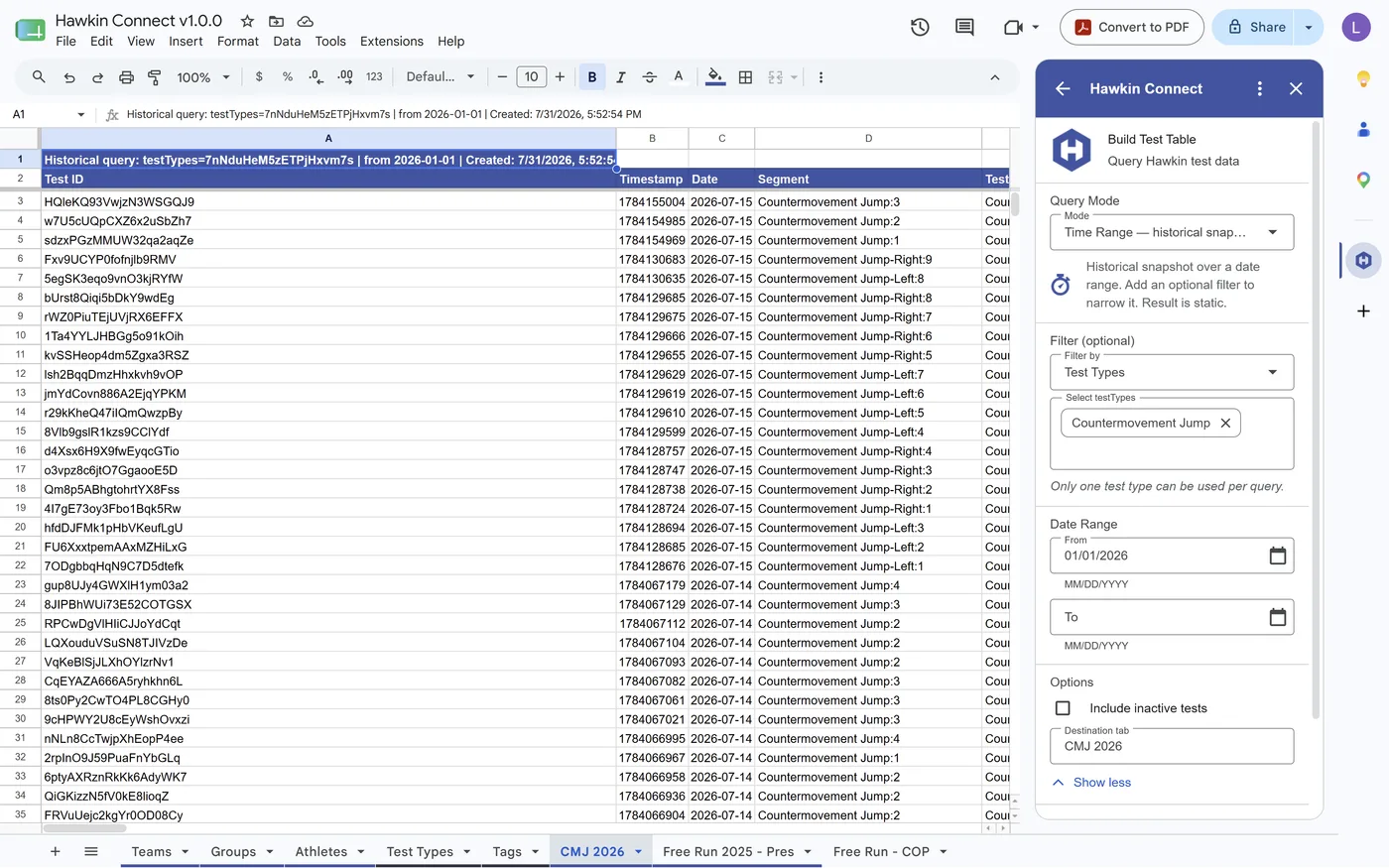
Time Range for historical snapshots, Sync-Monitored for live tables that track new and edited tests, and All Tests for a full-org export that runs in the background and resumes where it left off.
Refresh without losing scope
Sync Active Table pulls only what changed since your last sync and re-applies the original filter, so a CMJ-only table stays CMJ-only.
Force-time dashboards
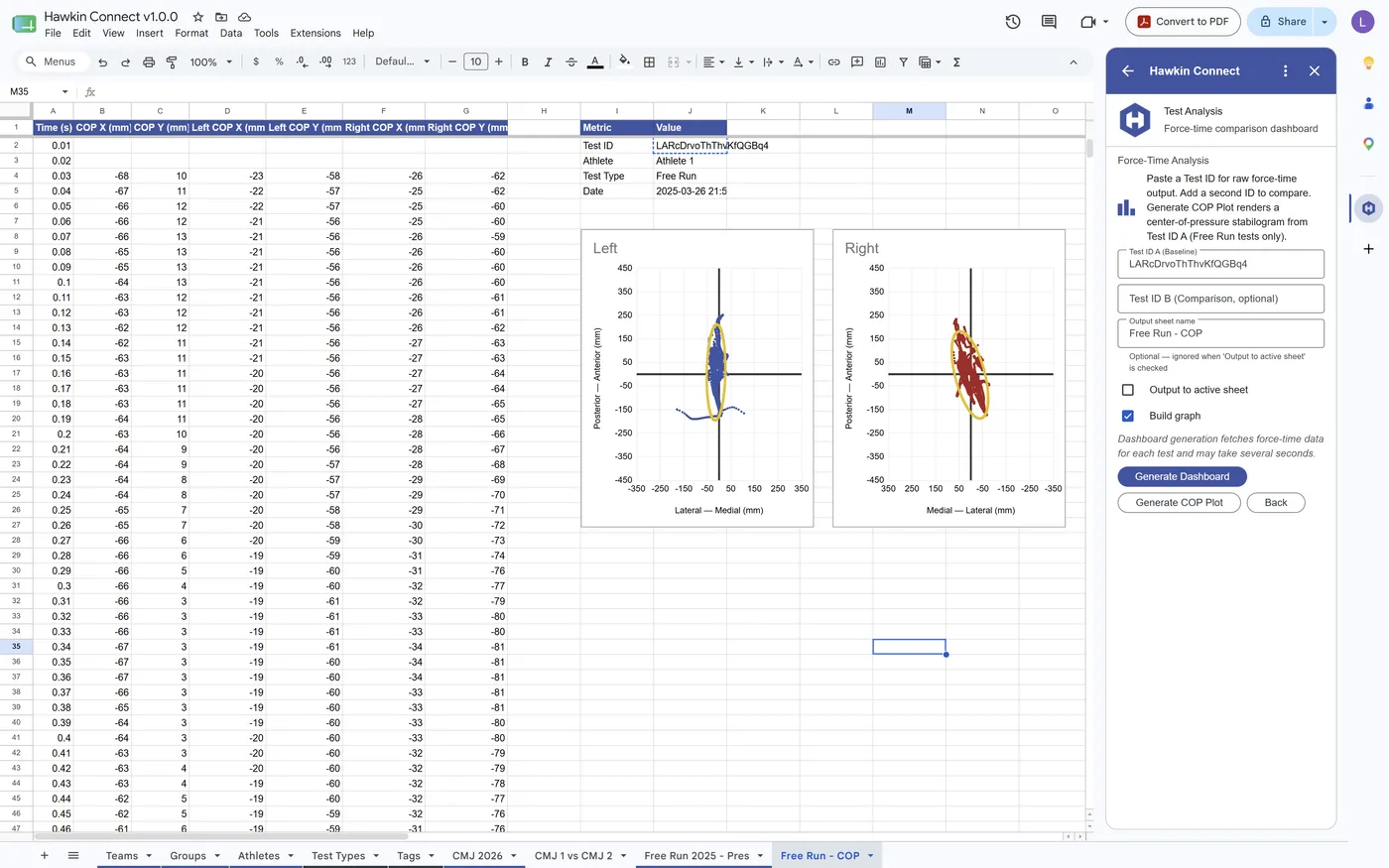
Paste one or two test IDs for raw signal, combined force, calculated velocity and power — with side-by-side comparison and a light or dark chart theme.
Centre-of-pressure plots
For Free Run tests, plot left and right plate COP paths as mirrored panels with 95% confidence ellipses — for balance, postural sway and asymmetry analysis.
Athlete management
Create or update athletes in bulk from the Athletes sheet, by explicit row range or your active selection, with a confirmation prompt before anything is written back.
Region and org aware
Americas, Europe and Asia-Pacific Hawkin instances are all supported, with organization ID configurable per account.
Getting started
-
Install the add-on
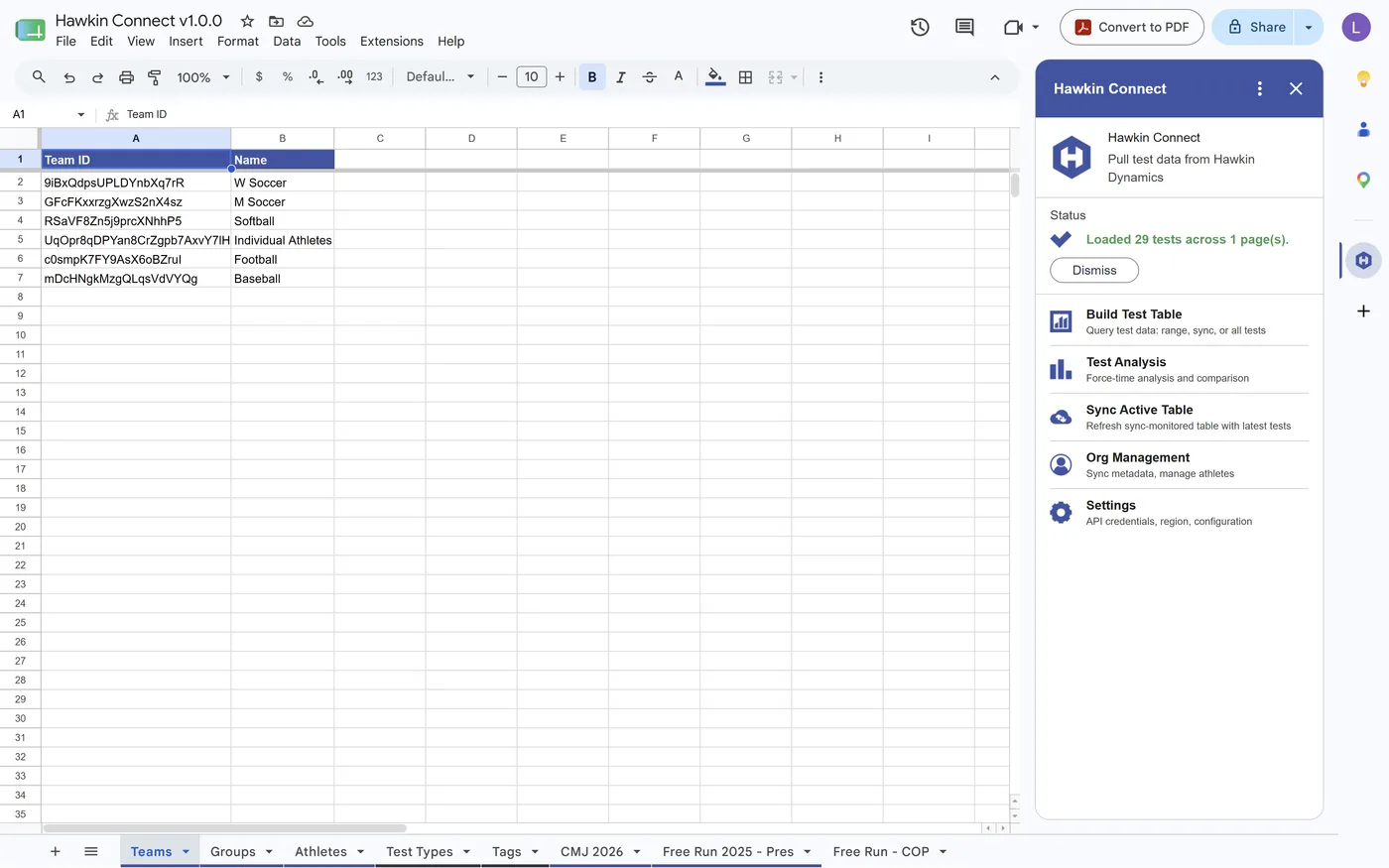
Install from the Google Workspace Marketplace, then open any spreadsheet. Hawkin Connect appears in the side panel on the right.
-
Generate a refresh token
In the Hawkin web app, go to
Settings → Integrationsand create a refresh token. Admin access is required to issue tokens, so you may need an administrator to do this for you. -
Connect
Open Settings in the add-on, paste your refresh token, choose your region, and press Test Connection before building your first table.
-
Build a table
Use Build Test Table to pull your first data set. Pick a query mode, add an optional filter, and name the destination tab.
What it looks like
Support
Questions about the add-on, or trouble connecting? Get in touch and we will help you sort it out.
Email support
Common questions
Read the FAQ — tokens, regions, rate limits and sync behaviour.
API reference
Browse the API — the same endpoints the add-on uses, if you want to build your own.
Your data
Your token is stored in Google's UserProperties, scoped to you and this
add-on, and can be cleared at any time from Settings.