Hawkin Connect for Excel
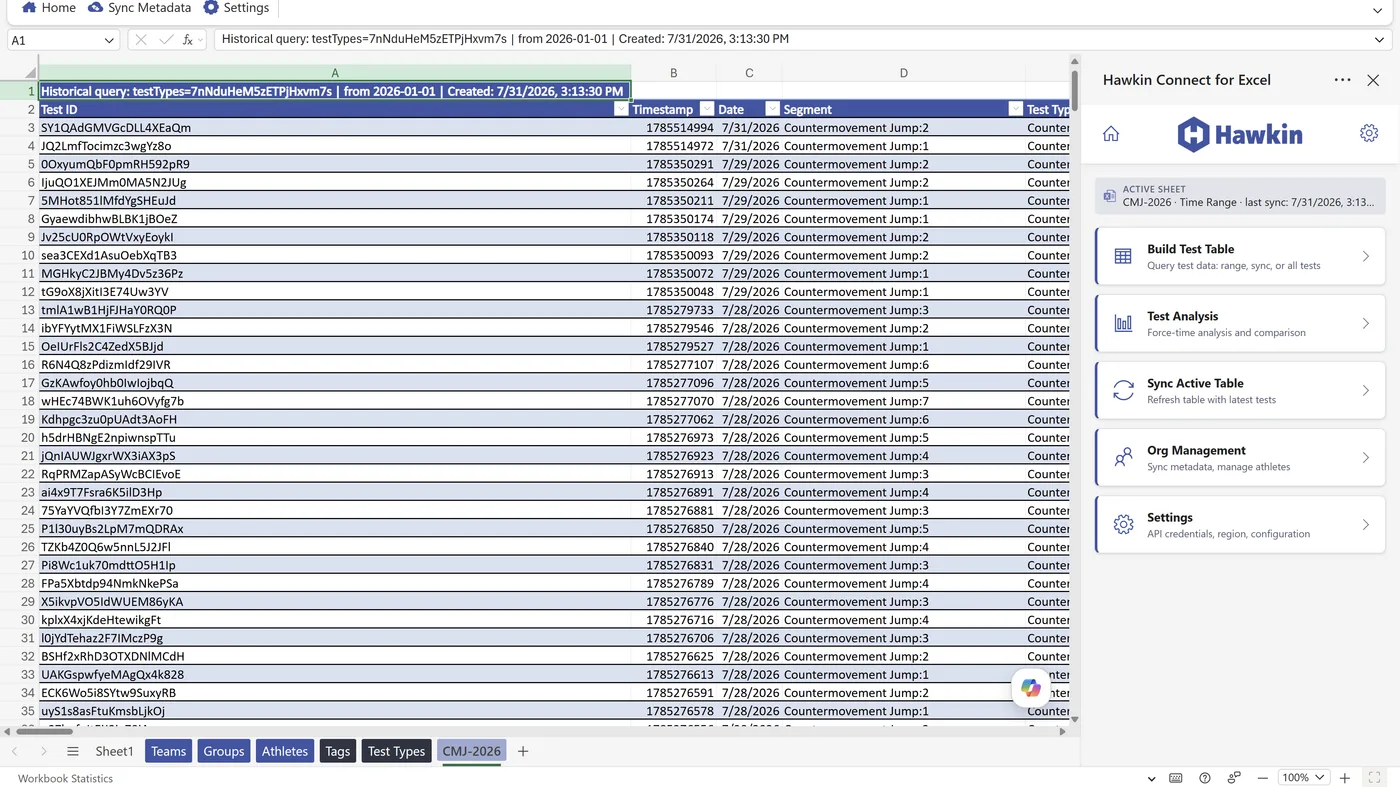
Pull your Hawkin test data straight into Microsoft Excel — filtered tables that refresh on demand, force-time dashboards, and bulk athlete management, all from a task pane beside your workbook.
Pending AppSource review
What it does
The same data and the same query model as the Google Sheets add-on, built for teams whose reporting already lives in Excel.
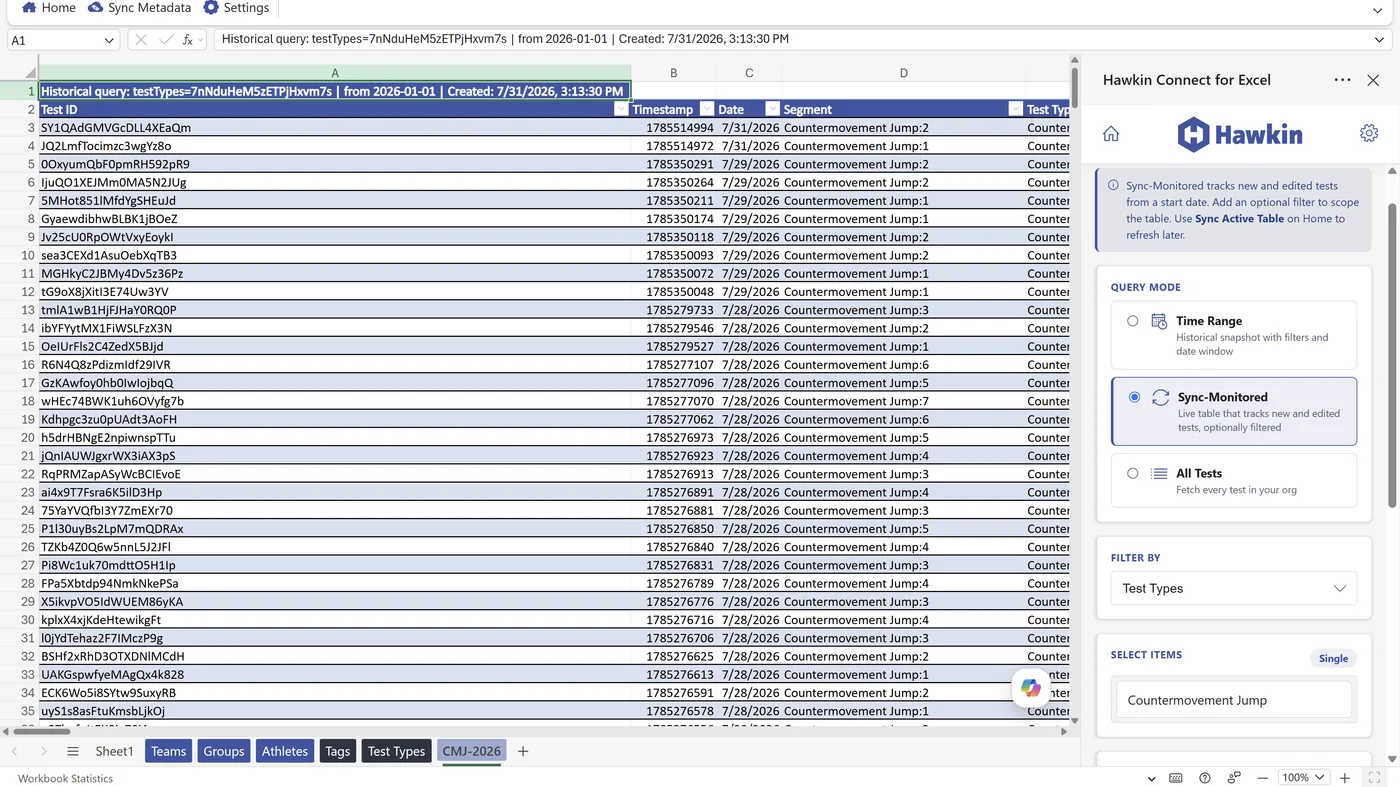
Three query modes
Time Range for historical snapshots, Sync-Monitored for tables that track new and edited tests, and All Tests for a full-org export.
Refresh in place
Re-run a query against an existing sheet and it pulls only what changed, keeping the original filter so your scope stays consistent.
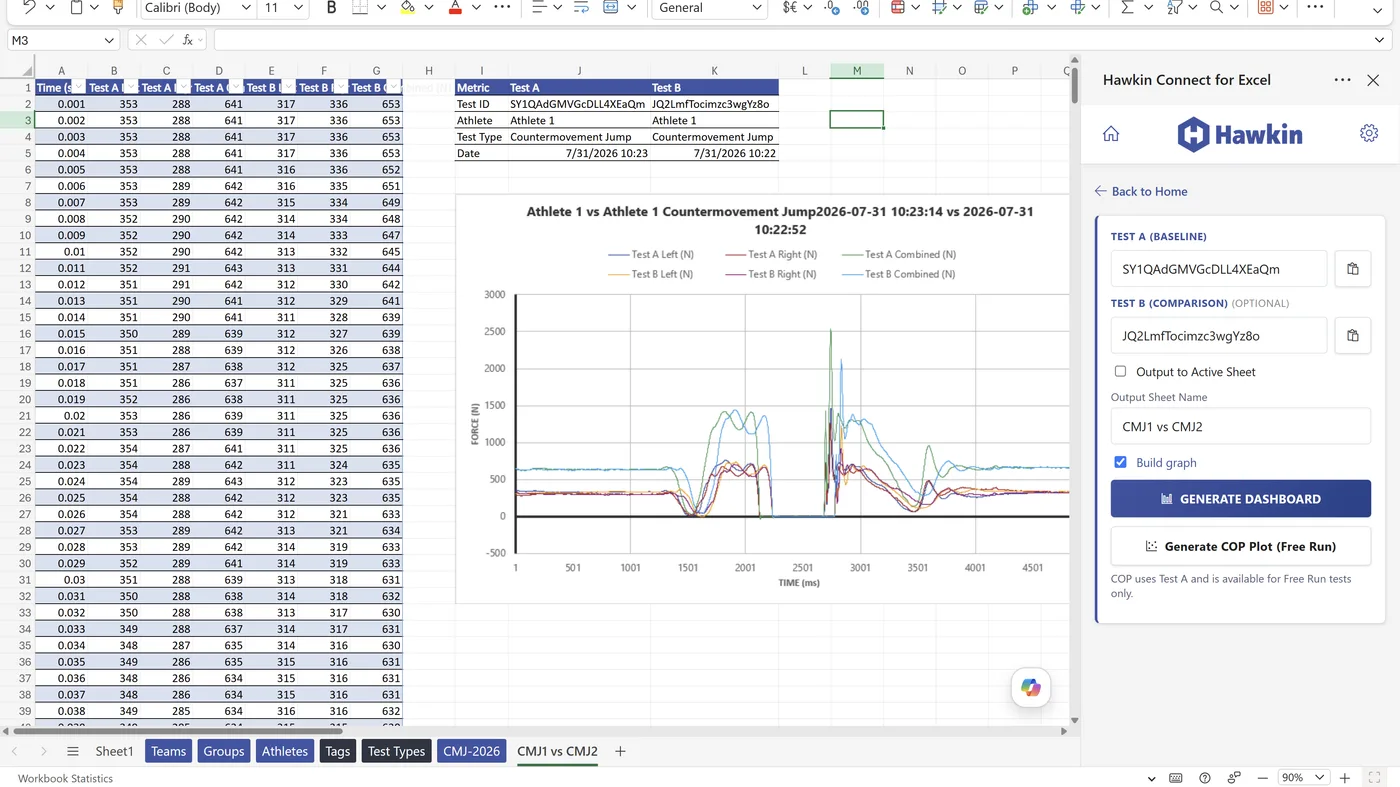
Force-time dashboards
Native Excel charts for raw signal, combined force, calculated velocity and power, with side-by-side comparison of two tests.
Athlete management
Create or update athletes in bulk straight from the Athletes sheet, with a confirmation step before anything is written back to your organization.
Metadata sync
One-click sync for teams, groups, athletes, test types and tags — each in its own named sheet, ready to reference with lookups.
Region and org aware
Americas, Europe and Asia-Pacific Hawkin instances are all supported, with organization ID configurable per account.
Getting started
-
Install the add-in
Install from Microsoft AppSource, then open Excel. Hawkin Connect appears on the Home ribbon and opens as a task pane.
-
Generate a refresh token
In the Hawkin web app, go to
Settings → Integrationsand create a refresh token. Admin access is required to issue tokens, so you may need an administrator to do this for you. -
Connect
Open Settings in the task pane, paste your refresh token, choose your region, and test the connection before running your first query.
-
Build a table
Use Get Tests to pull your first data set. Pick a query mode, add an optional filter, and choose where the results land.
What it looks like
Support
Questions about the add-in, or trouble connecting? Get in touch and we will help you sort it out.
Email support
Common questions
Read the FAQ — tokens, regions, rate limits and sync behaviour.
API reference
Browse the API — the same endpoints the add-in uses, if you want to build your own.
Prefer Power BI?
Power Query templates connect the same data to Power BI and Excel's native query engine.